

Google Analytics 4
GA4 install, consent mode, and enhanced measurement without editing theme files.
Snippet errors and duplicate tags are still the #1 reason GA4 numbers look wrong.
The workflow
How Google Analytics 4 works, step by step
The same 4-step flow runs across every surface — the interface changes, the engine doesn't.
- 01Paste the measurement ID; the plugin injects the tag in the right place, once.
- 02Enhanced measurement toggles for outbound clicks, file downloads, scrolls, video, and site search.
- 03Consent Mode v2 wired to the cookie banner out of the box.
- 04Cross-domain and subdomain tracking configured from the UI.
Inside the WBP interface
Real product screenshots from the current release — click any image for full resolution.
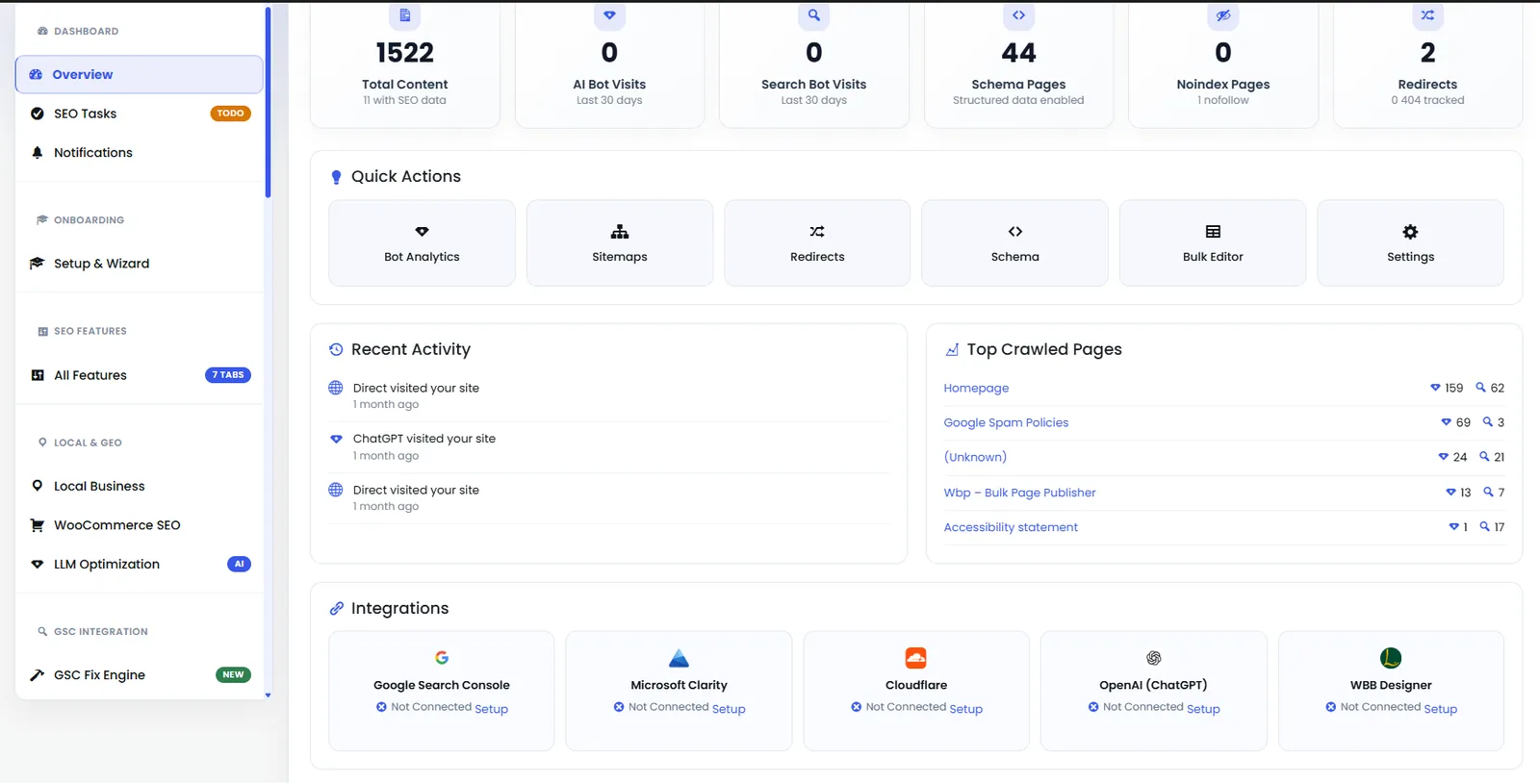
Dashboard — Analytics Panel
Second half of the dashboard showing keyword movement, indexation status, and Content AI credits.
- dashboard
- analytics
- overview
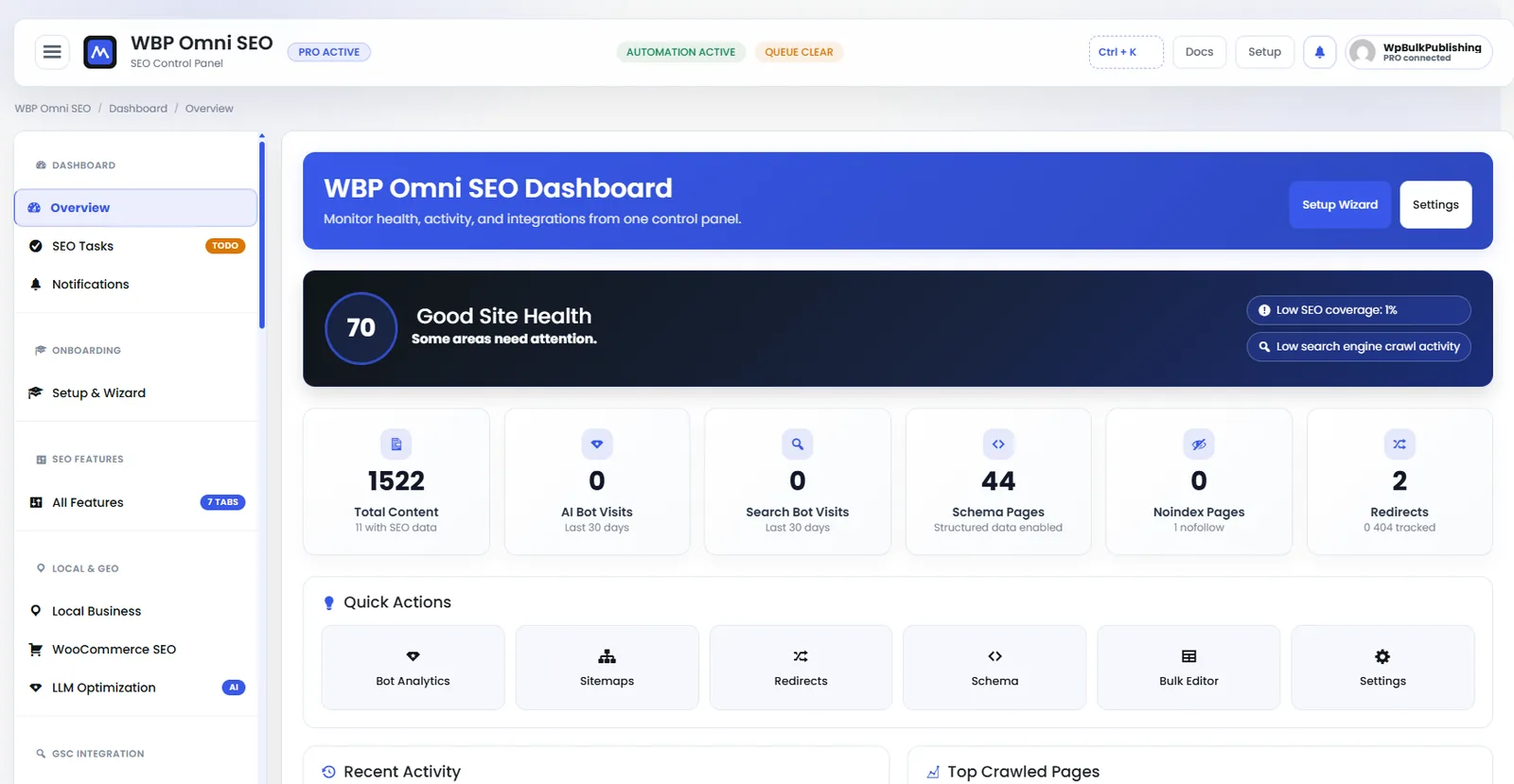
WBP Omni SEO Dashboard
Main WBP Omni SEO dashboard showing site health, SEO score, top pages, and quick actions.
- dashboard
- overview
- analytics
- ui

Website Connection
Connect your WordPress site to the WBP cloud for cross-site sync, analytics, and licensing.
- connection
- account
- license
- setup
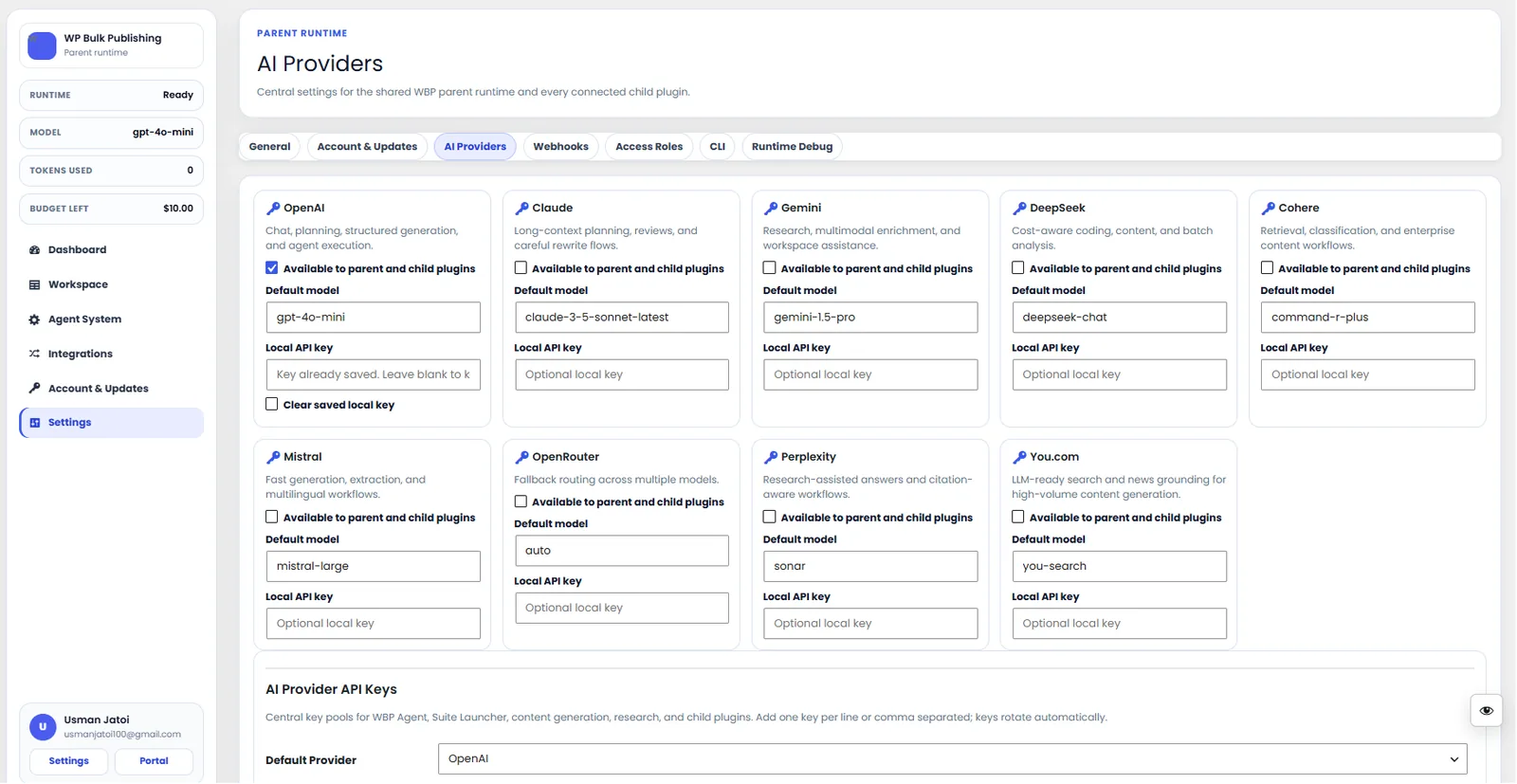
AI Providers
Configure AI providers — Lovable AI, OpenAI, Anthropic, Gemini — with model + budget controls.
- ai
- providers
- content-ai
- settings
Outcomes
What changes after you turn this on
No duplicate tags
Consent-compliant install
Clean GA4 events without a dev
Any WordPress site running GA4
Ships with defaults tuned for this team from day one — no consultant required.
Pairs well with
Related features
Get Google Analytics 4 plus every other capability — in one ecosystem.
One catalog covers plugins, tools, GPTs, MCP endpoints, apps and services. One team on the other end. One place to see what changed, when, and by whom.
